Phone Security Audit Checklist: What to Check Before It's Too Late
A practical checklist for auditing phone security, from hidden biometric access to message forwarding rules that most security guides miss.
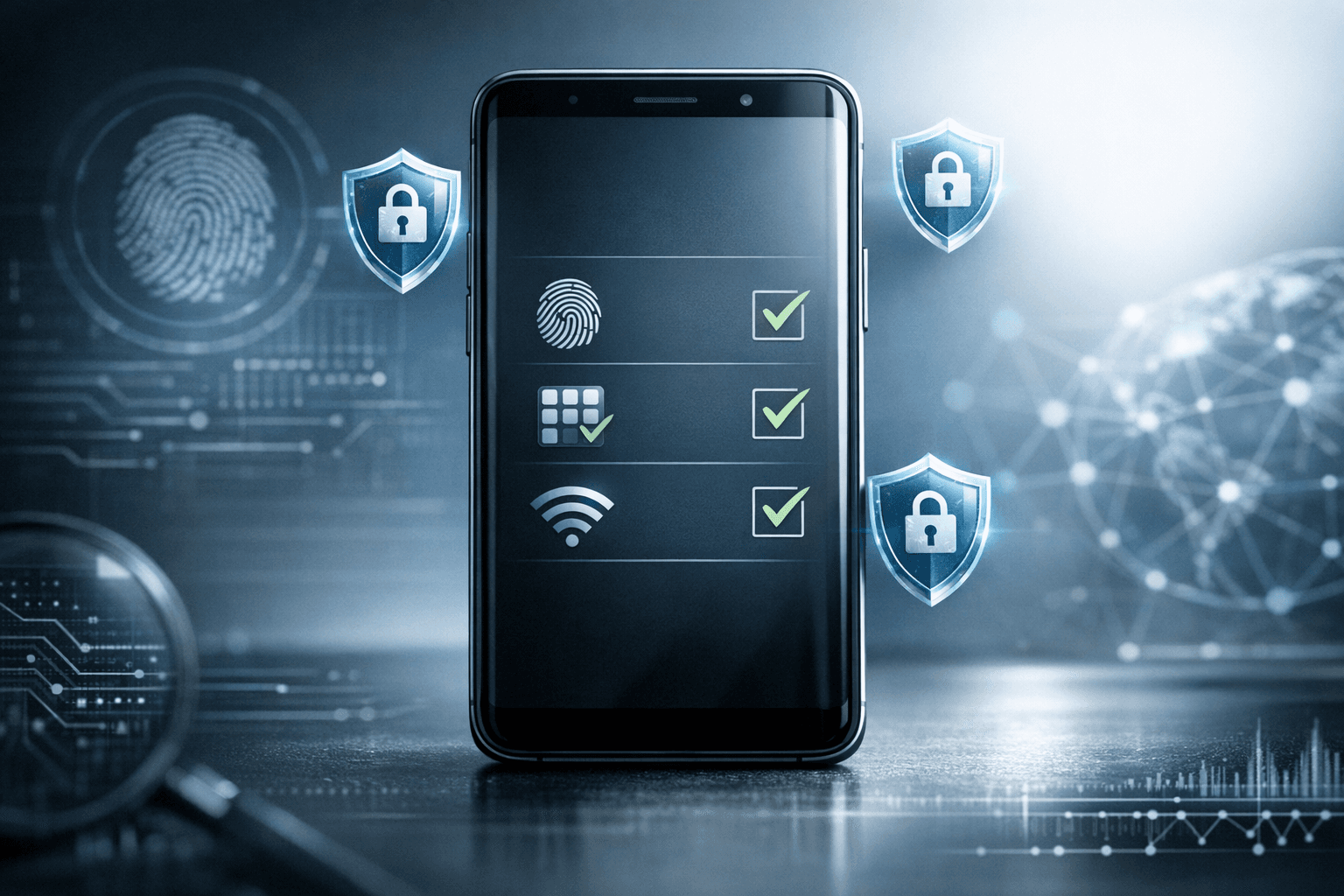
Opening Scenario
Sarah's phone disappeared from her gym locker for thirty minutes before turning up in the lost and found. Someone "found it" and turned it in. Seemed innocent enough. Three weeks later, her email account started sending password reset requests she didn't initiate. Her cloud storage was accessed from an unfamiliar device. The worst part? She had no idea what the person who had her phone actually did during those thirty minutes, or what they might still have access to.
Most people treat their phones like wallets—something to protect from physical theft. But phones are more like houses filled with keys to every other part of digital life. A compromised phone doesn't just mean losing the device. It means someone potentially has access to email, banking apps, social media, work documents, and the authentication codes that supposedly keep everything secure.
Why This Matters Now
Phone security isn't about installing an antivirus app and calling it done. Modern smartphones concentrate an unprecedented amount of access in a single device. Two-factor authentication codes, password manager access, biometric data, location history, private communications—all sitting behind a four or six-digit PIN that most people chose in about three seconds.
The threat landscape has shifted. Physical access attacks are more common than people realize. A determined person with fifteen minutes of access to an unlocked phone can establish persistent access that survives even factory resets if done correctly. They can add their biometrics, set up backup authentication methods, install profiles that silently forward messages, or extract credentials from poorly secured apps.
Meanwhile, remote attacks have become more sophisticated. SIM swapping attacks bypass SMS-based two-factor authentication. Supply chain compromises mean malware sometimes ships on new devices. Public charging stations can harbor data-stealing hardware. The security features built into phones help, but only if properly configured and regularly audited.
The Checklist
1. Review All Biometric and PIN Access
Start with the lock screen. Check every method that can unlock the phone—fingerprints, face recognition, PINs, patterns. On iPhones, go to Face ID & Passcode and review everything enabled. On Android, check Security settings for all registered fingerprints and face data.
Why it works: Unknown biometric registrations are the most common remnant of physical access attacks. Someone who had temporary access to an unlocked phone can add their fingerprint in under a minute.
Common mistake: Only checking the passcode. Biometric access entries are often in separate menus and easily overlooked.
2. Audit Installed Applications
Go through every app on the device. Not just the home screen—check the full app library. Look for anything unfamiliar, especially apps with generic names like "System Service" or "Device Health."
Why it works: Malicious apps often disguise themselves as system utilities. Even legitimate apps installed during a moment of distraction can have excessive permissions that create security holes.
Common mistake: Only looking at recently installed apps. Threats can sit dormant for months before activating, and app lists get long enough that people forget what they installed themselves.
3. Examine App Permissions
Review what each app can access. Location, camera, microphone, contacts, photos—go through the permissions menu systematically. On iOS, Settings > Privacy & Security breaks this down by permission type. On Android, it's under Privacy > Permission Manager.
Why it works: Apps request permissions during installation when users are eager to start using them and likely to tap "Allow" reflexively. A game doesn't need microphone access. A flashlight app doesn't need location data.
Common mistake: Assuming iOS apps can't abuse permissions. While Apple's sandbox is stronger than Android's, apps still get surprising access through legitimate APIs.
4. Check Device Administrator and Profile Settings
On Android, look for Device Admin Apps in Security settings. On iOS, check for Configuration Profiles under General > VPN & Device Management. These grant elevated system access.
Why it works: Device administrator access and configuration profiles can survive app deletions and enable remote control of the device. They're necessary for legitimate enterprise management but shouldn't exist on personal devices unless explicitly installed for work.
Common mistake: Not checking these at all. Most people don't know these settings exist.
5. Review Connected Accounts and Devices
Check which accounts are logged in on the phone and which devices are associated with those accounts. For Google accounts, visit myaccount.google.com/permissions and /device-activity. For Apple IDs, check Settings > [Name] > Devices. Do this for email, social media, and cloud storage.
Why it works: Account compromise often happens alongside device compromise. An attacker with temporary access might add their device to the account's trusted device list, establishing persistent access even after losing physical access to the phone.
Common mistake: Only checking the phone's settings without verifying the account settings from a web browser, where more details are visible.
6. Verify Backup and Recovery Options
Check backup authentication methods on all important accounts. Email recovery addresses, backup phone numbers, and security questions. Make sure they're all actually controlled by the phone's owner.
Why it works: Attackers often establish persistence by adding their own recovery email or phone number. Even if the password gets changed, they can reset it using the recovery method they added.
Common mistake: Focusing on the primary password while ignoring recovery options that provide an alternative route into the account.
7. Examine Message Forwarding and Auto-Forward Rules
Check for message forwarding rules in messaging apps and email. On iPhones, verify text message forwarding under Messages > Text Message Forwarding. In email apps, look for filters that automatically forward or delete messages.
Why it works: Message forwarding provides ongoing surveillance without requiring continued device access. It's particularly dangerous because two-factor authentication codes get forwarded automatically.
Common mistake: Checking only the primary messaging app without reviewing email rules, which can forward password reset emails before they're even seen.
8. Review Network Connections and VPN Settings
Check WiFi networks the device automatically connects to and any VPN configurations. Remove networks that aren't recognized. On iOS, look for VPN & Device Management. On Android, check Network & Internet settings.
Why it works: Malicious VPN configurations can route all traffic through an attacker's server. Fake WiFi networks with familiar names can appear in the auto-connect list after connecting once.
Common mistake: Assuming VPN configurations are safe because they appear in system settings. Malicious profiles can install VPN configurations that look legitimate.
Tools & Resources
Built-in Security Features
Both iOS and Android include security checkup tools that automate some of this process. Google's Security Checkup and Apple's Security Recommendations surface common issues, though they don't catch everything.
Password Managers
1Password, Bitwarden, and Dashlane all include security breach monitoring and will flag if stored credentials appear in known data breaches. Password managers with local-only storage options provide an additional layer of security for the most sensitive credentials.
Hardware-secured solutions like Keyois and UltraLocked offer air-gapped storage that keeps critical passwords completely isolated from internet-connected devices. These work well for high-value credentials—cryptocurrency keys, primary email passwords, or password manager master passwords—that don't need frequent daily access but require maximum security.
Two-Factor Authentication
Authy and Google Authenticator generate time-based codes locally rather than via SMS. For even stronger protection, hardware tokens like YubiKey provide phishing-resistant authentication that can't be compromised through phone access alone.
Device Analysis Tools
iMazing (iOS) and ADB tools (Android) allow more detailed device inspection from a computer, revealing background processes and system modifications that aren't visible through standard settings menus. These require more technical knowledge but provide deeper insight.
If Things Go Wrong
Discovery of unauthorized access requires immediate containment. First, change passwords for critical accounts from a different device—not the compromised phone. Email, banking, and cloud storage accounts take priority. Enable two-factor authentication using an authenticator app or hardware token, not SMS.
For the phone itself, a factory reset is often necessary, but do it properly. Back up only essential data, and verify the backup doesn't contain malicious profiles or apps. On iOS, use iTunes or Finder to create a fresh backup after manually reviewing installed apps. On Android, selectively back up photos and documents rather than using full system backup, which can restore threats along with legitimate data.
Before restoring any data, change the primary account passwords again from a clean device. This prevents any backed-up session tokens from providing access. After the factory reset, set up the phone as new and manually reinstall apps from official sources. Don't restore app data for apps that handle sensitive information.
Document everything discovered during the audit—unfamiliar apps, unknown device associations, suspicious forwarding rules. This information may be relevant for law enforcement or workplace security teams if the compromise was part of a targeted attack.
Consider whether the phone number itself is compromised. If attackers initiated a SIM swap, contact the carrier to verify the SIM card and enable additional authentication requirements for account changes.
Key Takeaways
-
Phone security audits should happen quarterly, not just after suspected compromise. Threats can remain undetected for months while establishing deeper access.
-
Physical security matters as much as digital security. Fifteen minutes of physical access to an unlocked device can establish persistent remote access that survives password changes.
-
Built-in security features catch obvious threats, but manual auditing reveals subtle compromises like unknown biometric registrations, message forwarding rules, and configuration profiles.
-
Recovery and backup authentication methods create alternative attack paths that bypass strong primary passwords. Review them alongside the primary authentication.
-
Hardware-secured password storage addresses the fundamental vulnerability of keeping credentials on internet-connected devices, particularly for high-value accounts that justify the extra friction of separate storage.